API and agent access
Open API for the integration overview, endpoint table, OpenAPI document, and token management. Settings → Agent Access also contains setup for supported assistants. The current interface requires Agency access for API tokens.
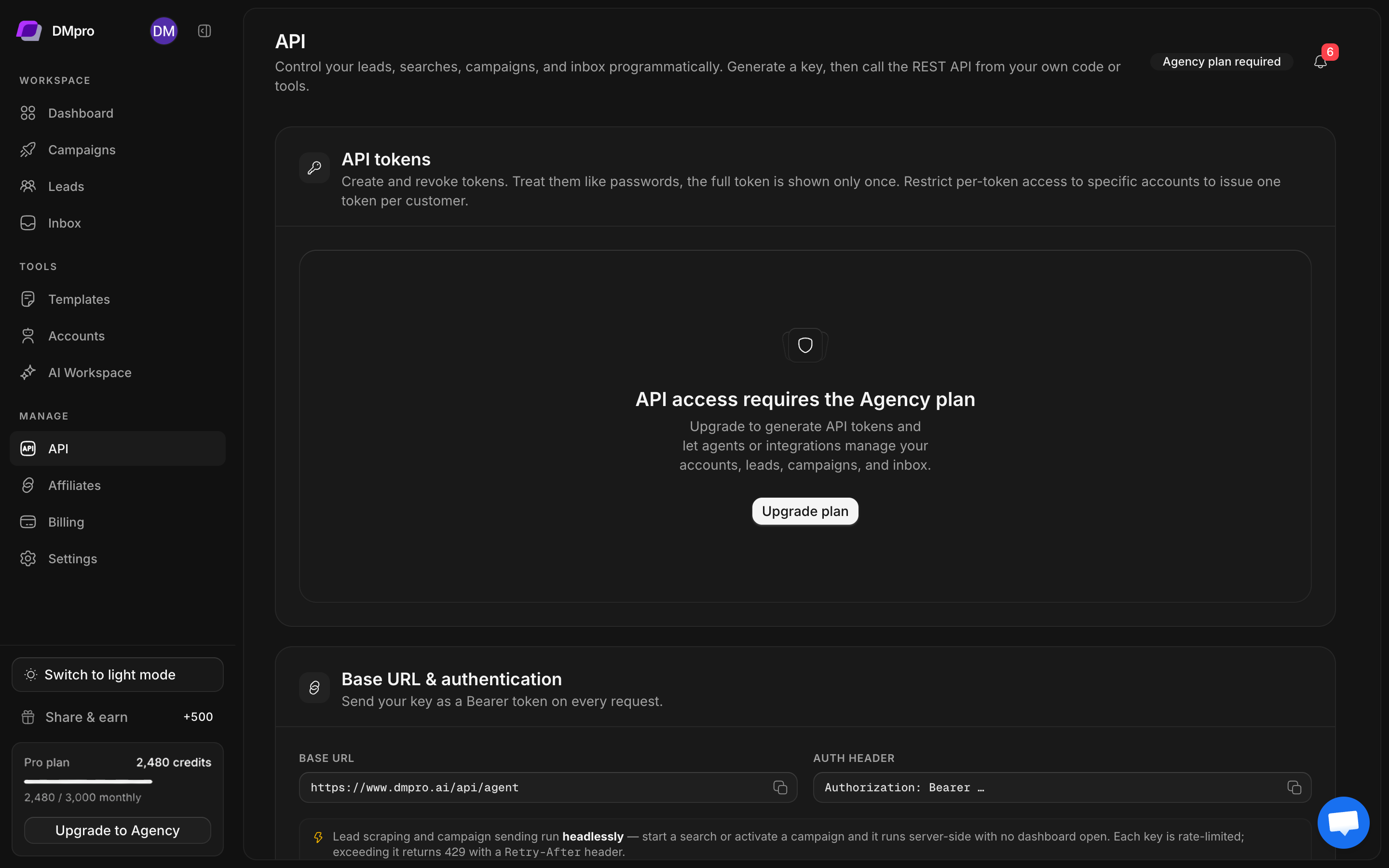
Create a token
- Confirm that Billing shows a plan with API access.
- Open API and choose the token-creation action.
- Enter a name that identifies the integration or customer.
- Choose access to all accounts or specific accounts. For a restricted integration, select only the intended X accounts.
- Review the selected scope and create the token.
- Copy the full token when it is shown and store it securely. The full value is shown only once.
- Verify the integration with a read-only request before authorizing any sending or campaign actions.
Do not paste a live token into public examples, browser-side code, screenshots, or shared support messages. Revoke an exposed or unused token from its management controls.
Make a read-only connection check
The production API base shown in the app is https://www.dmpro.ai/api/agent. Send the token using an Authorization header. This example expects your token to be supplied securely in DMPRO_API_KEY.
curl --fail-with-body \
  -H "Authorization: Bearer $DMPRO_API_KEY" \
  https://www.dmpro.ai/api/agent/me
Check the returned identity, plan, and permissions before using the token for changes. Do not assume a valid token is scoped to every connected account.
Find the contract
Use the API page’s OpenAPI link for request and response details. The interface lists account, lead, search, campaign, inbox, and template operations. Methods that create searches, send DMs, change campaigns, or delete records have effects in the workspace.
For endpoint parameters and response schemas, see the API reference .
Connect an assistant
In Settings → Agent Access, choose the assistant’s supported setup file and follow the instructions displayed in DMpro. Supply the intended account-scoped token when prompted by the integration. Recheck the scope before letting an assistant manage campaigns or messages.
If token creation is disabled, check plan access and the active-key count. An authorization error can reflect token validity or account scope, so inspect both before replacing a token.