Monitor, pause, and resume
Open Campaigns and choose the campaign by name. Its detail view is the place to inspect the audience, workflow, counters, and available lifecycle controls.
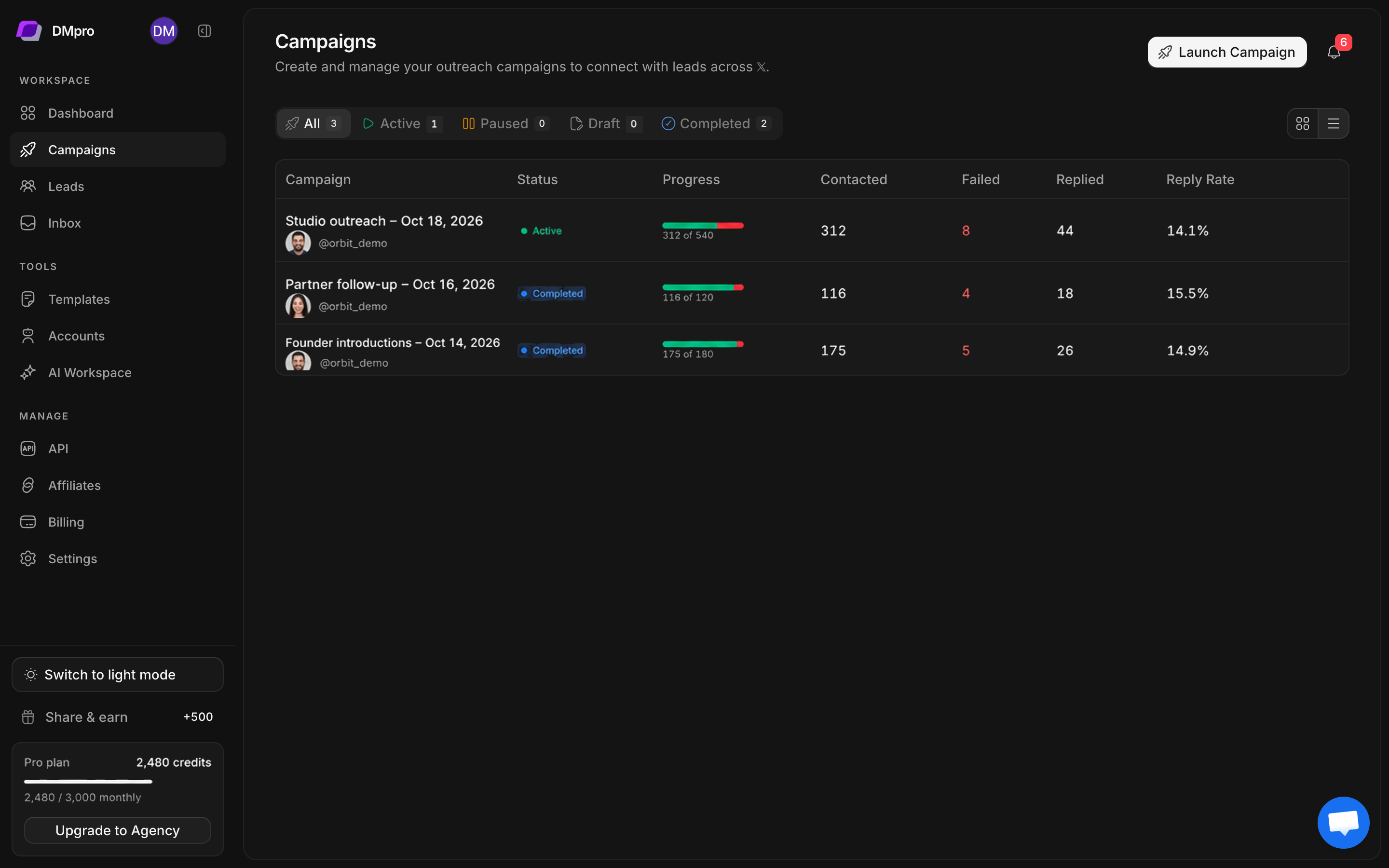
Start a prepared campaign
- Open the draft campaign.
- Verify the sending accounts and imported leads.
- Inspect the workflow and confirm all intended edits are saved.
- Select Start when you intend to begin processing its leads.
- Confirm the displayed status and inspect early lead results.
Creating a campaign and starting sending are separate actions. The creation dialog explains that sending starts when you select Start in campaign details.
Read progress correctly
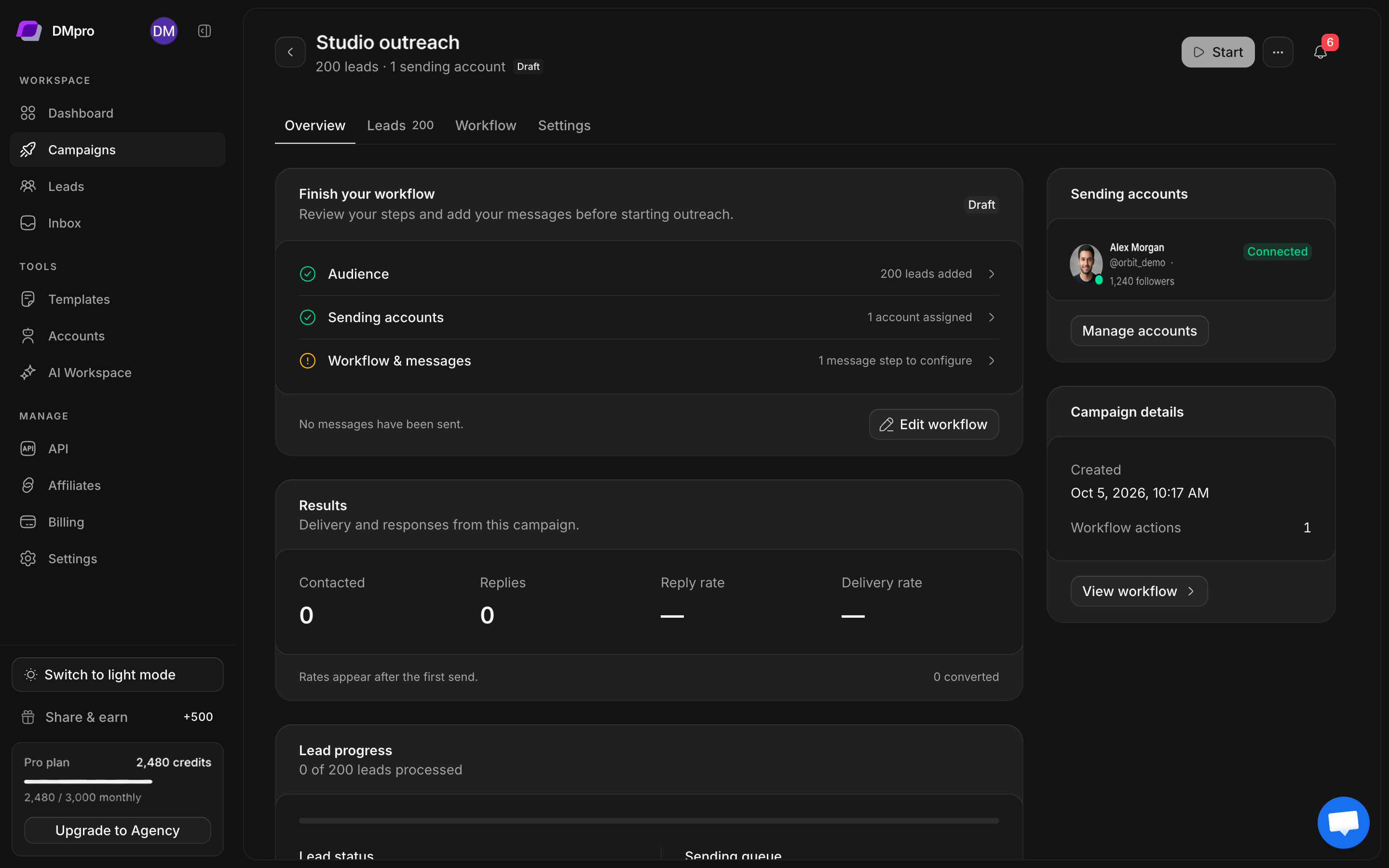
Compare sent messages, contacted leads, replies, and per-lead states. A campaign may have leads waiting on a configured delay, a response check, daily capacity, or an account issue. A completed campaign can also contain skipped or failed outcomes.
Open individual results to read why a lead was skipped or an action failed. Closed or restricted DMs affect eligibility. A sending failure is not evidence that the person rejected the offer.
Pause and investigate
- Open the affected campaign.
- Use Pause when available.
- Confirm the campaign’s paused state.
- Inspect the connected account, daily usage, recent errors, and workflow timing.
- Make the required change and save it explicitly.
- Review the remaining audience before selecting the available resume or start control.
Pausing prevents continued scheduling according to campaign state. A request already being processed may still finish, so inspect recent results before retrying or manually sending to the same lead.
When a campaign appears stuck
Check account health, daily limits, available credits, eligible leads, and configured waits before creating a duplicate. An active status does not mean every lead can be sent immediately.
For escalation, record the campaign name, affected handle, timestamp, and the error shown in the lead result. Continue with campaign troubleshooting.