Qualify and review leads
Qualification compares the available profile and conversation evidence with your business criteria. Read the explanation and missing information alongside the label. A score is an observed-signal score, not a probability of buying.
Configure your criteria
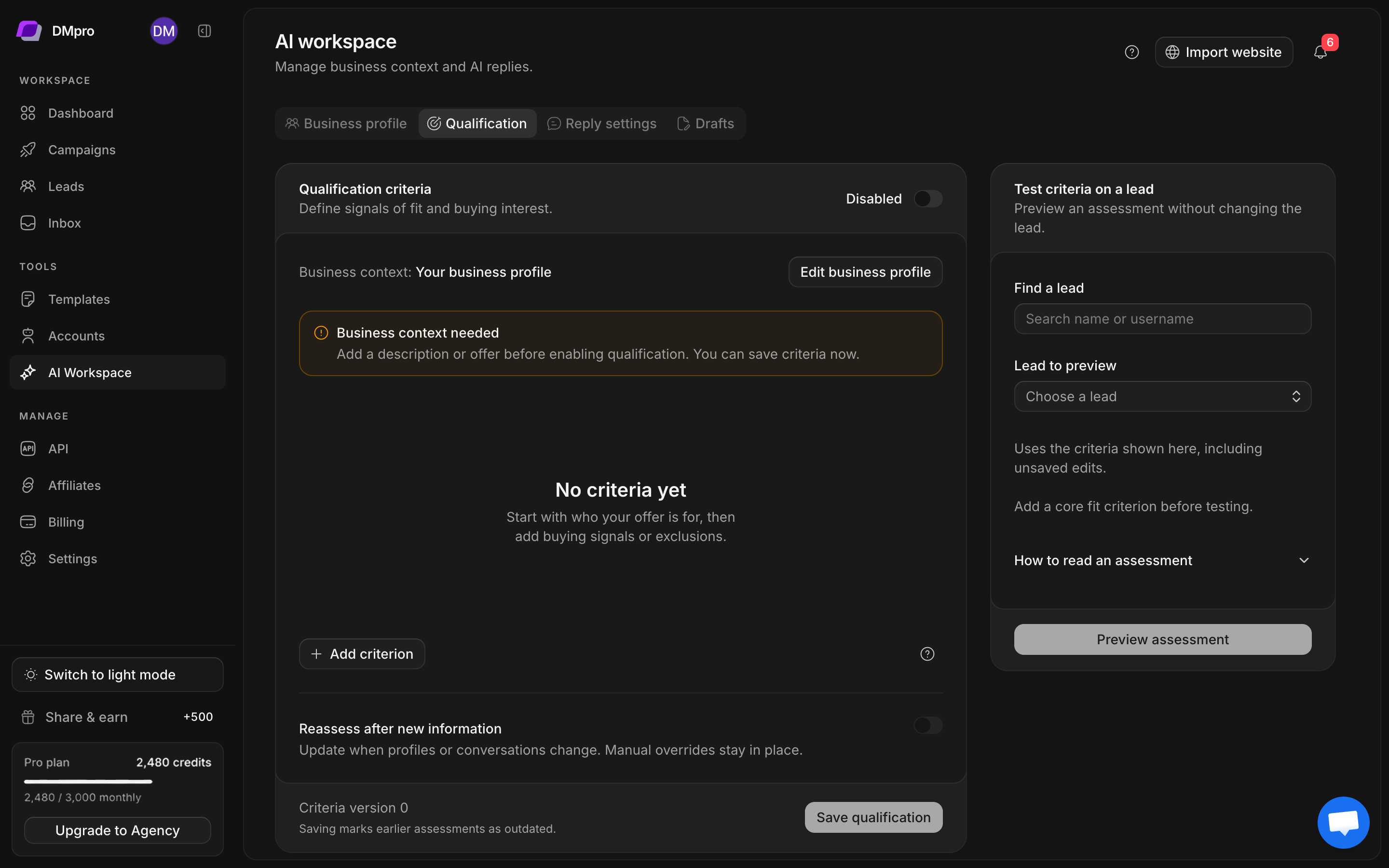
- Open AI Workspace → Business profile and save accurate information about your offer and audience.
- Open Qualification.
- Add at least one Core fit criterion describing an observable business trait.
- Add Preferred fit, Exclusion, or Buying signal criteria where useful.
- Enable qualification and save the settings.
- Use the preview section to find a lead by name or username, select it, and inspect a preview before classifying a large audience.
Write rules the evidence can answer
| Criterion | Useful purpose | Example wording |
|---|---|---|
| Core fit | A customer or business trait | Runs a B2B software business |
| Preferred fit | An additional positive signal | Leads a small sales team |
| Exclusion | A confirmed mismatch | Explicitly looking for employment rather than a service |
| Buying signal | Interest expressed in conversation | Asks to schedule a product demo |
Write criteria that describe your target customers and offer. Use profile and conversation evidence rather than guessing budgets or buying intent from follower counts.
Assess a group and inspect results
Open a lead group and use its classification action. Review the scope and any displayed cost before starting. Keep the run’s progress in view; large groups can complete in batches. Inspect individual results after progress updates instead of assuming every row is assessed at once.
In lead details, inspect the explanation, criterion outcomes, cited evidence, buying-intent result, and missing information. Fix inaccurate business rules before rerunning the whole group.
Understand the labels
Hot requires confirmed core fit and a concrete next step toward buying or booking. Warm indicates some verified positive signals without all Hot conditions. Cold can reflect a confirmed exclusion, explicit rejection, or no verified positive signals under the current scoring rules.
Missing evidence is not proof of a mismatch
An unverified trait earns no points. A Cold result caused by missing bio or conversation information does not prove the person is a poor fit. Conflicting evidence, incomplete context, or missing configuration can leave a lead unclassified. Inspect the reason before acting.
Manual review and reassessment
Use an available manual override when you have evidence the assessment missed. Automatic reassessment respects manual overrides. Reassess after new information controls updates when profiles or conversations change; review this setting separately from the master enable control.
A failed assessment is a processing issue. It is not the same as a valid Cold classification. For stalled batches or retry errors, see troubleshooting.