Your first campaign
This walkthrough follows the setup order in DMpro. Start with a small audience so you can check the profiles, message, and account selection before expanding the campaign.
Before you start
Have access to your DMpro workspace and the X account you want to connect. You also need an audience source, such as an X account’s followers, a community, or a CSV of usernames, and a message written for that audience.
If an action opens trial activation or an upgrade prompt, review your workspace’s current access in Billing. The number of accounts and available credits depend on your plan.
Set up and review
Sign in and open the workspace
Open DMpro . Use the sidebar to reach Accounts, Leads, and Campaigns. On a phone, open the navigation menu first.
Connect a sending account
Open Accounts → Add Account. Export the session cookies from X, paste them into Account cookies, and select Continue. Check the detected handle before confirming. Return to Accounts and verify that the account is available. Detailed connection steps.
Collect a small audience
Open Leads → Find leads. Choose a source, enter its details, set a modest lead limit, and review the filters and credit estimate. Start the search only when those details are correct. Collection runs in the background. Lead collection walkthrough.
Inspect the resulting group
Open the group and read a few profiles. Check DM availability and remove unsuitable recipients from your intended selection. A large group total does not mean every profile is eligible for campaign DMs. Working with groups.
Create the campaign
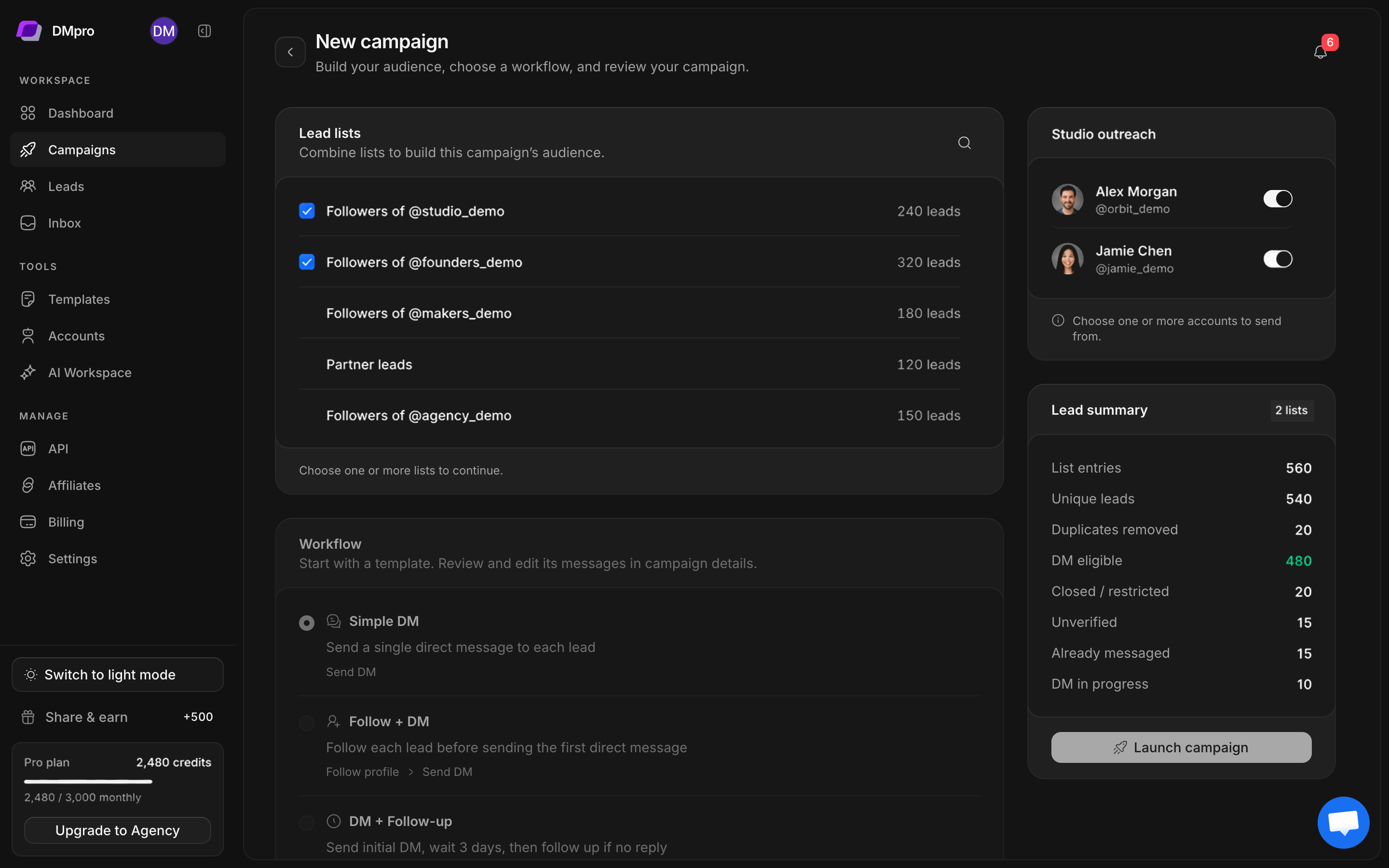
Open Campaigns → Launch Campaign. Name it, select the sending accounts, choose the lead lists, and pick a workflow. Simple DM is the shortest starting point. Review the message content and every personalization variable. Full campaign setup.
Review before confirming
Select Launch campaign to open Review campaign. Check the name, lists, senders, workflow, messages, and eligible-lead count. Confirming creates the campaign; sending begins when you select Start in its details.
Check the campaign, then start when ready
Open campaign details. Verify the imported audience and workflow, then use Start when you intend to begin sending. Monitor progress and use Pause if you need to investigate or change the setup.
What to check afterward
Open the campaign to compare contacted leads, replies, waiting steps, and errors. Use Inbox to read responses in context. Check the dashboard reporting period before comparing its counters with the campaign’s cumulative totals.
If nothing is sending, work through campaign troubleshooting before starting duplicate campaigns or increasing limits.