Build a workflow
The workflow editor describes what happens to each campaign lead. Open a campaign and use its workflow-editing action. The canvas connects Start, actions or conditions, and End.
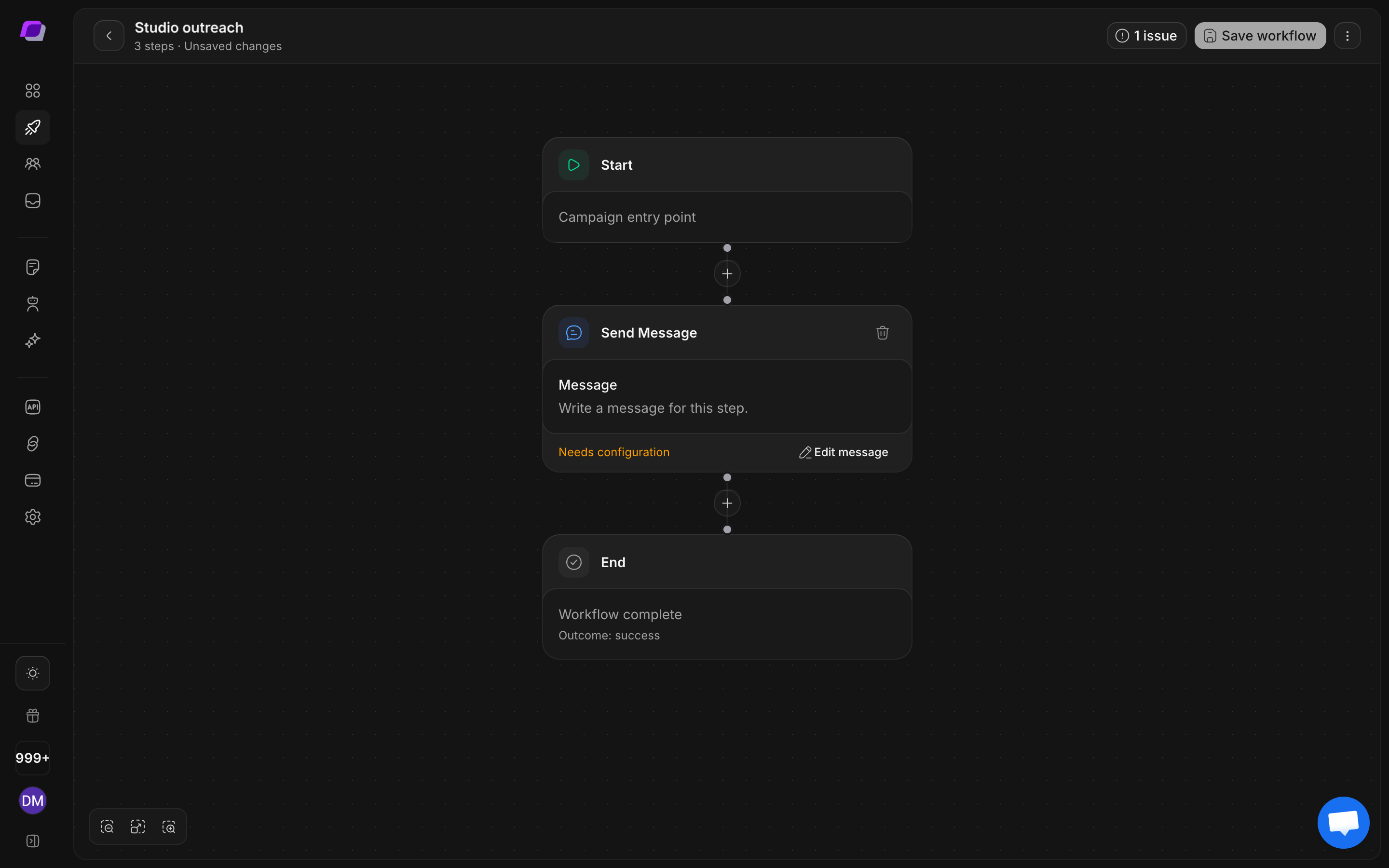
Edit a message step
- Open a campaign’s workflow.
- Select its Send Message or Send DM step.
- In the configuration panel, read and edit the outgoing message.
- Check personalization variables against the information available for your leads.
- Close the configuration panel and inspect the step summary.
- Resolve any issues shown in the toolbar, then select Save workflow.
- Wait for the saved state before leaving the editor.
The editor distinguishes Unsaved changes, Saved, and Read only. Changing a draft on the canvas does not imply that the campaign is already using it.
Add a step
Select the plus control on the connection where the new step belongs. Choose the available step, configure its required fields, and follow the connections to check both the entry and exit path.
| Step | Purpose | Check before saving |
|---|---|---|
| Send DM | Send the configured direct message | Content and personalization |
| Follow Profile | Follow the lead’s profile | Placement before or after a message |
| Like Post | Like a selected or recent post | Post-selection setting |
| Comment | Add the configured comment | Comment text and post selection |
| Add Tag | Add a tag to the lead | Tag name |
| Wait | Pause the sequence | Duration and unit |
| If Responded | Branch based on a reply | Check window and both outcomes |
| If Followed You | Branch based on a follow | Check window and both outcomes |
| If Can DM | Branch on DM availability | Yes and No connections |
| AI Auto-Reply | Apply the configured AI reply behavior | Business context and limits |
| AI Classify Reply | Classify a response | Expected branches and outcome |
Build a conditional follow-up
Use the built-in DM + Follow-up template as a starting point. It sends an initial message, waits three days, and checks whether the lead responded. The reply path ends; the no-reply path sends the follow-up and ends.
Inspect both the Wait step and the response condition’s own checking window. They are separate settings. Change them only after deciding how long the whole sequence should take.
Resolve issues and save
Open the toolbar’s issues control to read validation messages. Selecting an issue takes you to the affected step. Fill required message fields, check branch connections, and ensure the sequence can reach End.
Use Fit to view, Zoom in, and Zoom out to inspect the graph. The options menu includes shortcuts and Reset workflow. Reset replaces the current draft with the default sequence; save only if you intend to apply that replacement.
Pause a campaign before substantial changes to an active sequence. After saving, return to campaign details and verify the result before resuming.