Organize lead groups
Groups keep audiences separate. Open Leads to see groups, their source, lead count, and collection status. Use All leads when you need a workspace-wide view.
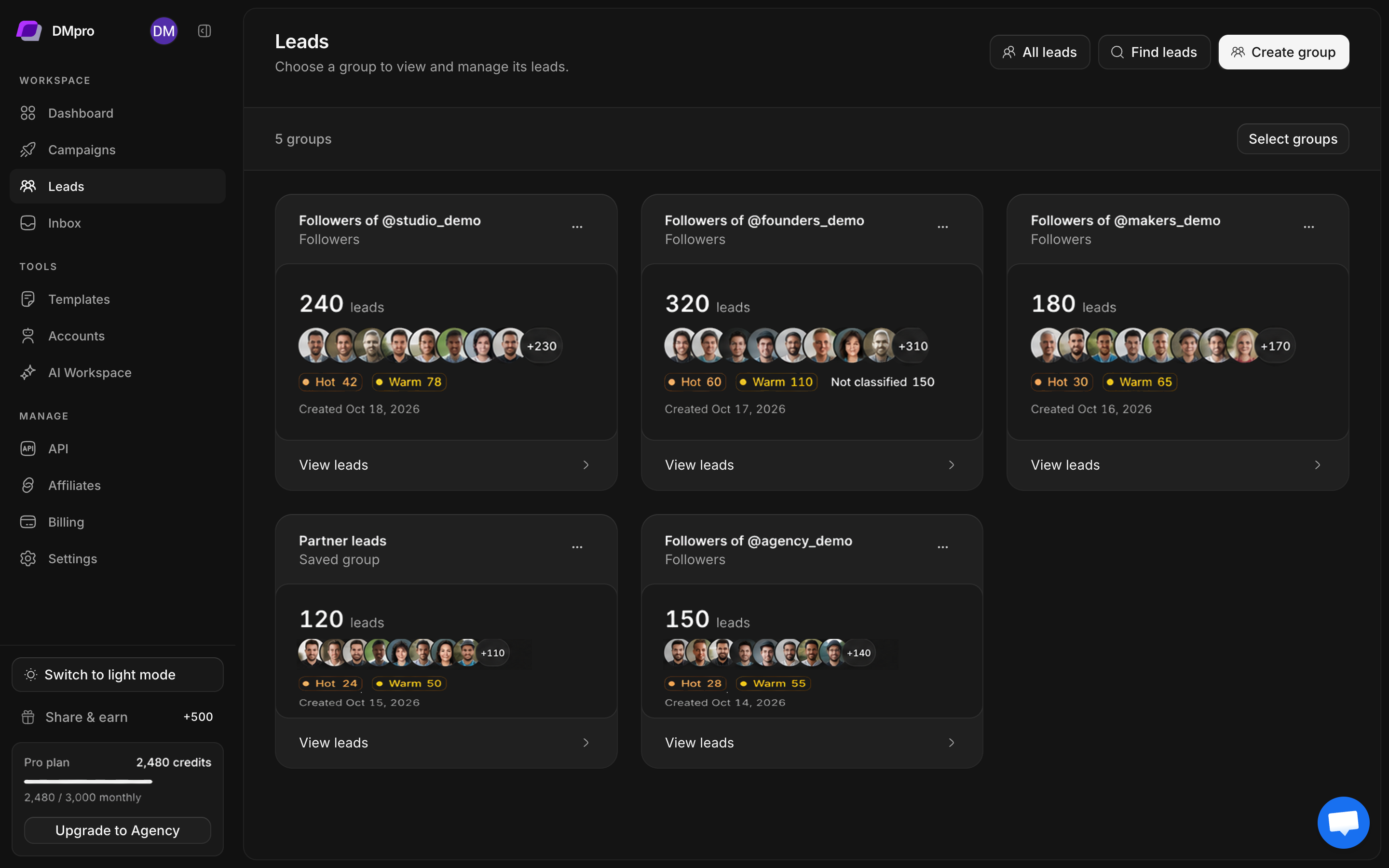
Create and fill a group
- Open Leads → Create group.
- Enter a name that describes the audience, such as an event, customer segment, or collection source.
- Select Create group.
- Open the group and use Find leads to collect or import into it.
- Alternatively, select existing leads in another group and copy or move them into this group.
An empty saved group is valid. Creating the container alone does not collect profiles or start outreach.
Inspect and filter leads
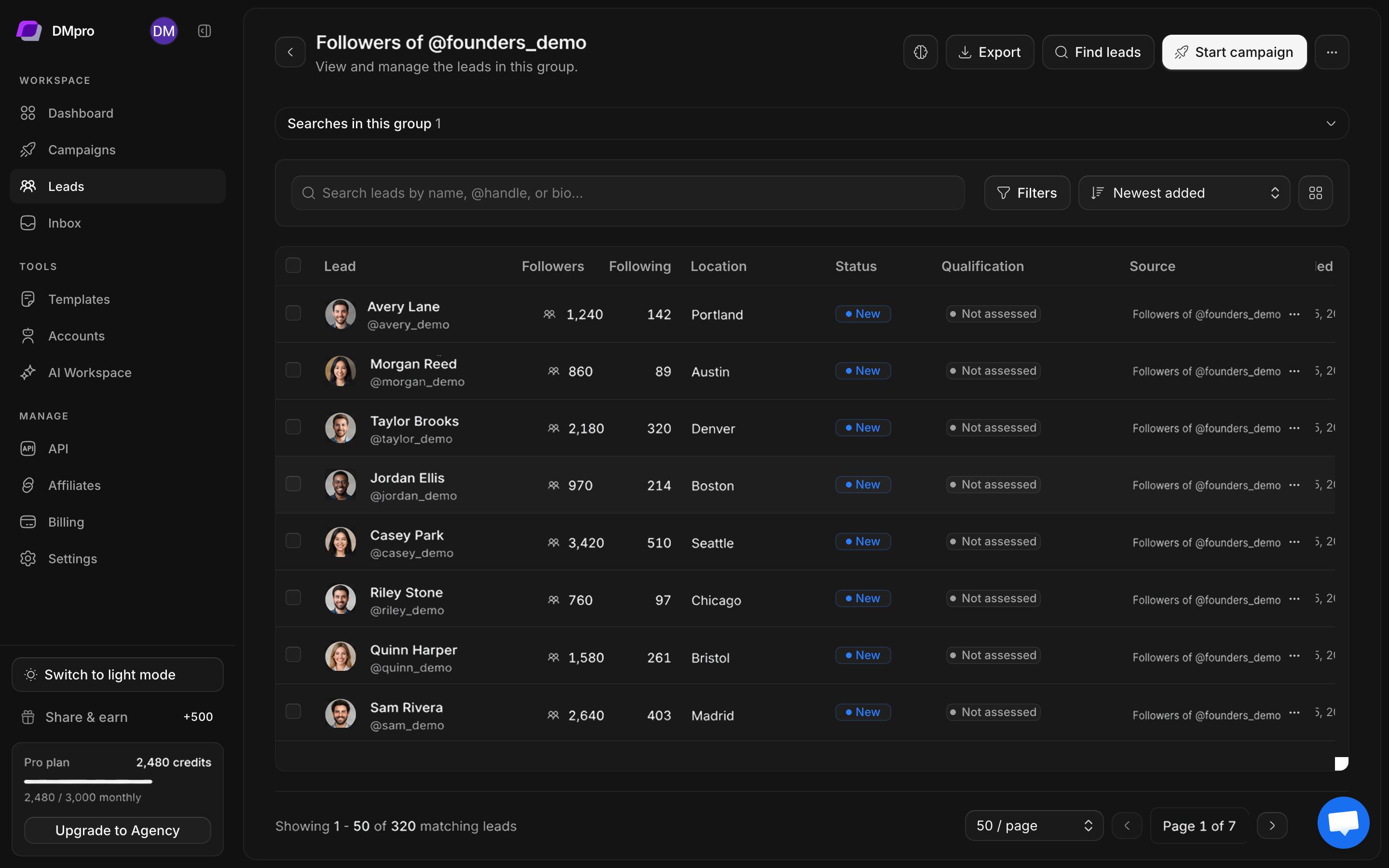
- Open the group’s View leads link.
- Use the available search and filters to narrow the table.
- Read the profile handle, status, qualification, and DM availability.
- Open an individual lead to see its full details and available assessment evidence.
- Use the collection history to distinguish a finished group from a search still adding profiles.
Copy or move selected leads
- Use the row checkboxes to select the intended records.
- Check the selection count before opening the bulk actions.
- Choose the copy or move action offered in the selection toolbar.
- Pick the destination group and review the dialog.
- Confirm, then open the destination and verify the result.
Copy keeps the lead in the source group. Move transfers its group membership. Group membership and the underlying lead identity are separate, so duplicating an audience does not create a new person.
Merge, duplicate, and campaign selection
The group options menu exposes actions such as duplication and group management. To merge, use Select groups and choose at least two eligible groups. Collection and existing merges must finish before groups can be merged.
To use a group for outreach, choose it in campaign setup or use the available add-to-campaign action for selected leads. Review eligibility again: closed or restricted DMs, duplicates, and previous contact can reduce the usable count.
For AI scoring, continue with Qualify and review leads.