Read and reply to messages
The inbox brings conversations into the workspace so you can review replies and continue the discussion. Always check the sending account and recipient before sending.
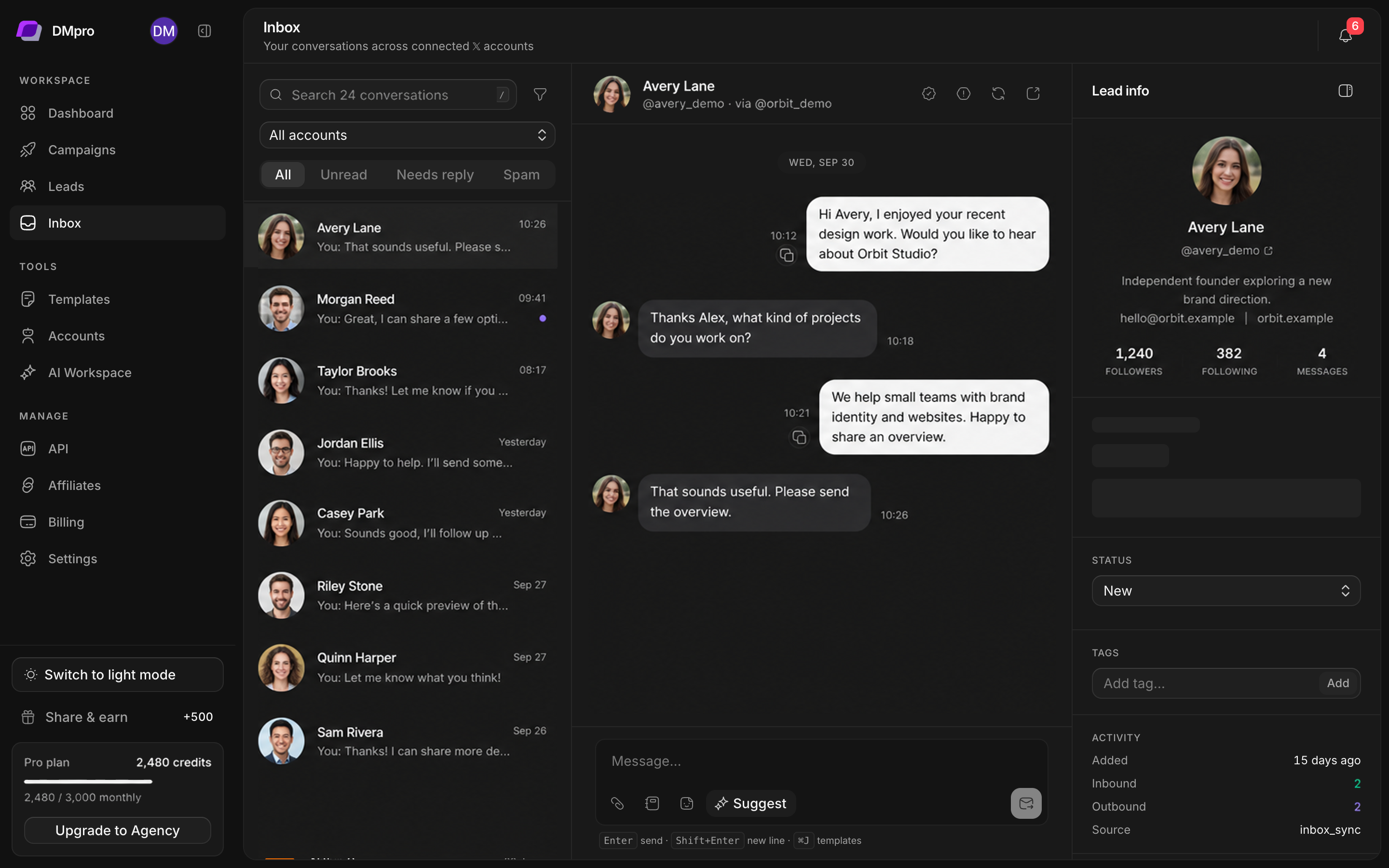
Find the conversation
- Open Inbox in the sidebar.
- Check the selected X account or account filter.
- Use the conversation search and filters to locate the lead.
- Select the conversation and read the recent incoming and outgoing messages.
- Open the lead-information panel when you need profile, status, or qualification context.
An inbox filter can hide a conversation without deleting it. If you cannot find a reply, check the selected account and filters before assuming it is missing.
Send a manual reply
- Select the intended conversation.
- Read the latest incoming message and confirm the recipient’s handle.
- Write your reply in the composer.
- Review inserted variables, links, and any template text.
- Select the send control once.
- Check the resulting message state before retrying if the request takes time.
If sending fails, keep the error text and check account health and DM access. Avoid sending a duplicate from X or another campaign while the first request’s outcome is uncertain.
Use an AI suggestion
Open AI Workspace → Reply settings to choose Suggest only. In the conversation, use Suggest when you want help drafting. Read the proposal, correct its tone or facts, and send only the message you approve.
Business context improves relevance, but you still need to check the conversation. A generated response should not promise an unapproved price, discount, result, or appointment.
Review drafts
With Draft for approval, open AI Workspace → Drafts to inspect pending replies. You can open the associated lead’s conversation, edit the proposal, or reject it. Approval is a sending action; verify the account and recipient first.
For the difference between suggestions, drafts, and automatic sending, read Reply modes and draft approval.
Refresh and recover
Use the inbox’s refresh or sync control when shown, then inspect whether the conversation list updated. If the app asks you to reconnect, restore the DMpro sign-in or affected X session as indicated. A successful page refresh alone does not prove X has delivered a particular message.